
CSS Class dropdown Customization
CSS Class dropdown Customization
The CSS Class dropdown of CuteEditor displays a predefined set of CSS Classes.
You can easily add your own CSS Classes using the following methods.
1. Edit Dropdown Configuration file (Common.config).
The dropdown configuration file (Common.config) can be found in the
CuteEditor_Files/Configuration/Shared folder. In dropdown configuration file
you can find the CssClass element which contains the configuration
information for the CSS Class dropdown within Cute Editor.
You can modify the CssClass element to create your own CSS Classes list.
Example:
- <CssClass>
- <item text="[[NotSet]]" value="null"></item>
- <item text="Red Text" value="RedColor">
- <html><![CDATA[<span style='color:red'>RedColor</span>]]></html>
- </item>
- <item text="textbold" value="textbold">
- <html><![CDATA[<span class='textbold'>textbold</span>]]></html>
- </item>
- <item text="Highlight" value="Highlight">
- <html><![CDATA[<span style='background-color: yellow'>Highlight</span>]]></html>
- </item>
- <item text="Bold Green Text" value="BoldGreen">
- <html><![CDATA[<span style='color: green; font-weight: bold;'>Bold Green Text</span>]]></html>
- </item>
- </CssClass>
Now the CSS Class dropdown contains "RedColor", "textbold", "Highlight" and "BoldGreen".
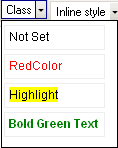
2. Programmatically populate the CSS Class dropdown
Example:
- <%
- Dim editor
- Set editor = New CuteEditor
- editor.ID = "Editor1"
- 'Programmatically populate the CSS Class dropdown.
- editor.CssClassStyleDropDownMenuNames = "RedColor,Highlight,Bold Green Text"
- editor.CssClassStyleDropDownMenuList = "RedColor,Highlight,BoldGreen"
- editor.Text = "Hello World"
- editor.Draw()
- %>