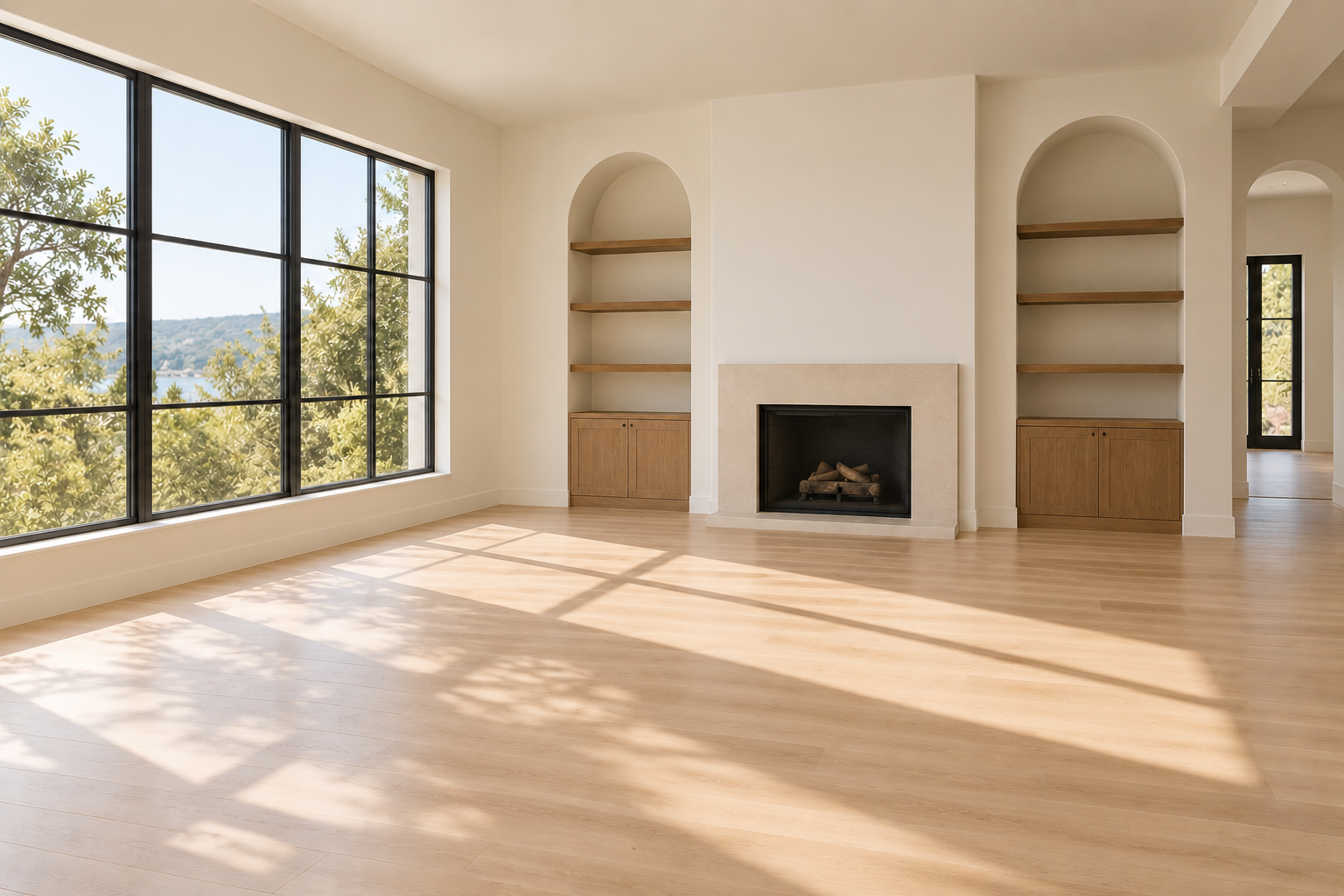
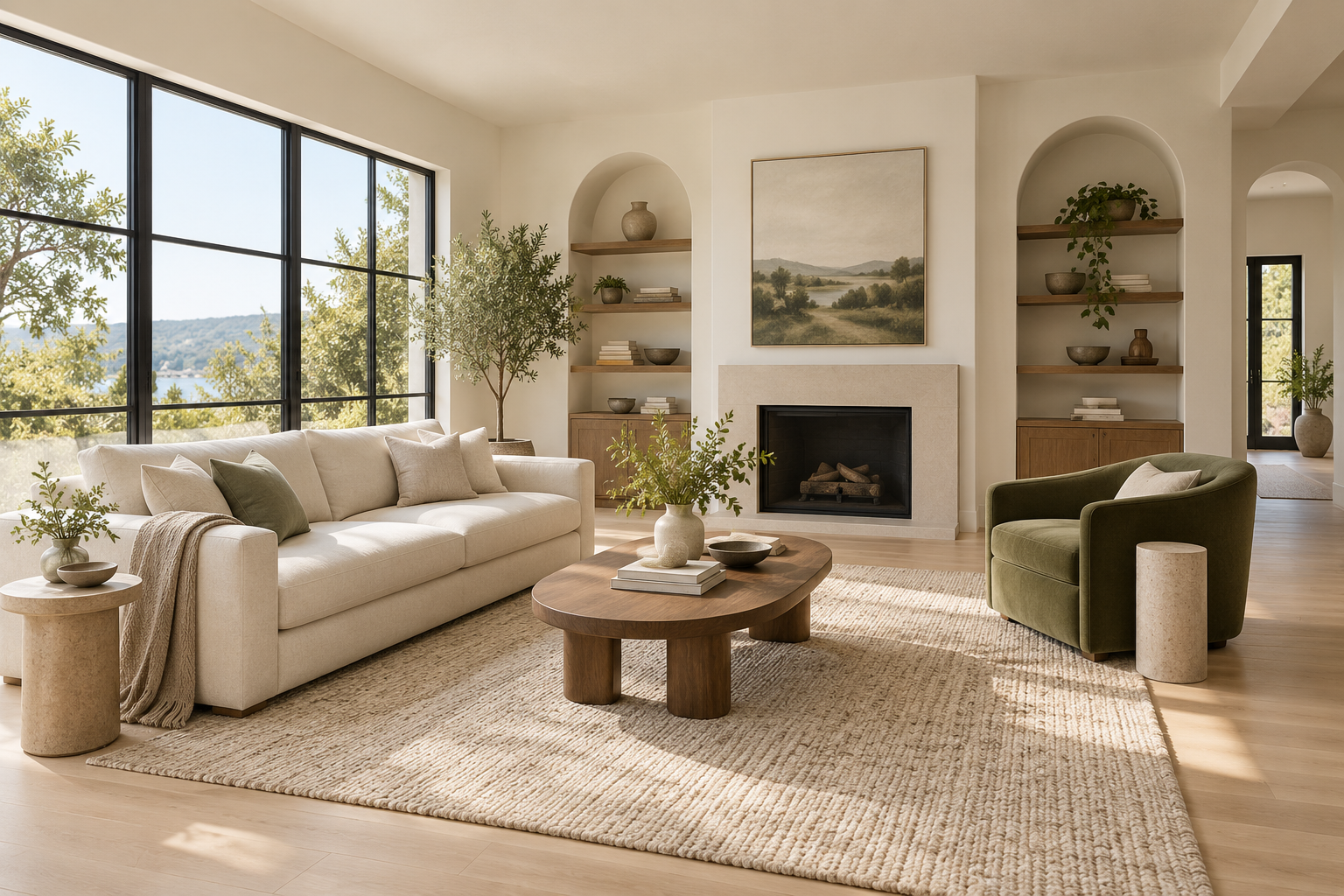
 EmptyStaged concept
Compare before you buy
AI room staging
Add furniture and decor to an empty or lightly furnished room. Choose from eight room types and fourteen design styles, then compare your preview with the original.
Try your roomRICHSCRIPTS VIRTUAL STAGING
Turn a clear room photo into a furnished design concept. Explore furniture, texture and a sense of scale — then compare the staged preview with your original.
Stage your room Find your design styleFree watermarked preview · CA$3 clean PNG
No subscription. Review your result before paying.
Empty roomVirtually stagedEXPLORE THE FEATURES
Start with one photo. Choose a direction. Review the result before buying.
EmptyStaged conceptAdd furniture and decor to an empty or lightly furnished room. Choose from eight room types and fourteen design styles, then compare your preview with the original.
Try your roomIllustrative design inspirationReview a free watermarked preview within service limits. Pay CA$3 only when you choose a clean PNG of that result. Each new generation is a separate result.
Create a previewIllustrative before/after photos. See how staging can feel; use your own preview to evaluate the actual result.
A clear, empty or lightly furnished interior works best.
Choose a room type and one of fourteen design directions.
Compare the preview with your photo before downloading.
MAKE THE CONCEPT USEFUL
Virtual staging helps illustrate furnishing possibilities. It does not measure the room, specify real products or guarantee a marketing outcome.
Explore how a vacant room might feel furnished. Compare the result against the original, retain both images and disclose the edit wherever you publish.
Show a possible furniture arrangement in an empty rental. Make clear that generated furnishings are illustrative and are not included with the property.
Compare design directions before making a furnishing decision. Measure your actual space and check real furniture dimensions before buying anything.
EXPLORE FOUR FEATURED ROOMS
Select a room type for your preview. These descriptions suggest a direction; the AI decides the individual furniture pieces.
Living room selected.
SIX FEATURED STYLES · FOURTEEN AVAILABLE
Choose a design direction for your next preview. Explore the furniture, textures and mood of each direction. These AI-created photos are illustrative inspiration, not verified results from this staging service.
Modern selected. Upload your room to try this direction.
Illustrative photo guideA BETTER STARTING PHOTO
A clear view makes it easier to judge furniture placement and check the finished result.
YOUR VIRTUAL STAGING STUDIO
Upload one room photo, choose a style, then generate your preview. Your photo stays in this browser until you choose Generate.
Add your room photo to see it here. After generation, drag the comparison slider to inspect what changed.
Arranging your room. This may take a few minutes.
One PNG without the RichScripts watermark. The optional disclosure label is added below the image. Start checkout within 22 hours and retrieve the image within 24 hours of generation.
Imagine it. Then inspect it. AI may alter details despite preservation instructions. Compare walls, windows, flooring and proportions before using an image. Clearly label published results as virtually staged.
RESULT RECOVERY
Receipt references stay in this browser, even when you clear a photo or start another preview. No room photos are saved here. A “Payment verified” status appears only after the server confirms payment. Retrieval always checks the server again; local deadline estimates do not extend availability.
Paid results use their recorded payment provider when available in this browser.
Use “Copy private link” to keep a result reference outside this browser. Keep the link private: it can provide access to a paid result. The server still checks payment and expiry.
Forgetting references does not delete server files, revoke previously copied links or refund a purchase. Copied links remain subject to server expiry.
PREVIEW FIRST. DECIDE SECOND.
Review a watermarked preview, compare the details, and choose whether to keep that result. A new generation creates a separate result.
AT A GLANCE
A focused single-photo staging workflow. Review the concept before deciding whether to buy the clean result.
BEFORE YOU SHARE
Use the comparison slider to inspect the result alongside your original.
Compare walls, windows, doors, flooring and fixtures. If the AI changed the property itself, keep the original and do not present the edit as an accurate listing photo.
Look for believable proportions, clear doorways, natural shadows and visual artifacts. Generated furniture is inspiration, not a shopping list or a measured layout.
Retain the original photo and clearly describe the image as virtually staged when sharing. Check the requirements of the platform where you plan to publish.
FURNISH THE POSSIBILITY
The AI is instructed to add movable furniture and decor while retaining the room’s architecture, viewpoint and lighting. It is a visual concept, not a renovation plan or a guarantee of exact dimensions.
For best results, use a level photo with good daylight and a clear view of the floor. Remove private documents and personal details before uploading.
GOOD TO KNOW
A watermarked preview is free within service limits. One clean PNG costs CA$3 using the existing RichScripts image checkout. There is no subscription or automatic payment when generating a preview.
Your working photo is resized to at most 1024 pixels on its longest edge. The clean download is a PNG of the generated result; it is not an original-resolution photo or a guaranteed print-ready image.
Yes. Change the selected style and generate another preview within service limits. A successful new generation creates a separate result and replaces the current preview. If generation fails or is cancelled, your previous preview remains available. Save a preview before starting over. Earlier result references remain in the Recent results panel for retrieval within the server’s download window.
If the generated image has different proportions from your original, the studio shows each image at its own aspect ratio instead of stretching it to fit a comparison overlay. The slider is disabled for that result. Use the larger-image viewer to inspect both images, and check for altered architecture or framing before sharing.
Drag on the result image or use the Original / Compare / Staged buttons. Choose “Inspect larger image” to view the available image at a larger display size, then switch between the original and watermarked preview. Enlarging the display does not add detail or improve resolution.
It is instructed to preserve architectural features, but generative edits can change details. Inspect every image and keep your original photo. This is not a measurement, construction or property-condition tool.
You can include a “Virtually staged” label in your download. Label published edits clearly and retain the original. Check your listing platform’s requirements. Do not use generated furniture or altered details to misrepresent the property’s condition.
Preview preparation happens in your browser. Generation sends your photo to the RichScripts server and its AI provider. Generated originals are held in encrypted server storage for a 24-hour download window. Clear removes your working photo from the page; recent result references remain in this browser until you forget them. It does not recall a request already sent.
This page does not require an account or subscription. You need a room photo, upload permission and human verification to generate. A clean PNG is an optional purchase after reviewing the preview.
Generation may take a few minutes and depends on service availability. The studio shows when a request is working. You can cancel; cancellation does not recall a request already sent to the server.
There is no drag-and-drop furniture editor, targeted revision workflow, batch upload, 360° staging or multi-angle consistency in this product. Trying a different style starts a new generation and may change the whole composition.
You do not need to buy it. Review the watermarked result first, or try another generation within service limits. Buying a clean PNG removes the watermark from that result; it does not improve or revise the design.
Yes. After generating a preview, choose “Save before / after comparison.” It downloads a PNG with the prepared original beside the watermarked preview, clearly labeled. Both images retain their proportions and may have padding to fit. This export does not unlock the clean paid image or add resolution. Inspect the result and retain your source photo before sharing.
Use “Save working original” to download the browser-prepared JPEG used in the studio. It reflects resizing and JPEG preparation, so keep your uploaded source file separately for its original resolution and quality.
Add an optional result name before generating. The name identifies that result in Recent results and its preview or clean-image download filename. Changing the name field afterwards applies to the next generation, not the existing preview. Names stay in this browser; opening a recovery link elsewhere restores the receipt without its local name.
Use the payment selector in Recent results for a new purchase. It stays available after clearing your working photo and shows the currently enabled methods. Paid results use their recorded provider when known. If checkout cannot connect, retry its setup; for a paid download problem, use retrieval or contact support with your payment reference.
Use “Copy private link” in Recent results before leaving the page. Opening the link restores that result’s retrieval reference, not its preview or your uploaded photo. Keep it private and download promptly: it does not restart the purchase or download window. If copying is blocked, select the displayed link and use your device’s Copy action.
Check your browser’s Downloads folder after retrieval and keep a copy in your own storage. Recent results store references, not image backups. A paid reference can be retrieved again only while the server file remains available. Payment verification does not guarantee that your browser saved the download.
Start a new checkout within 22 hours of generation. Original files are available for up to 24 hours from generation; payment does not restart that window. Checkout may be refused near expiry. Download your purchased PNG promptly and keep a copy. If you have already paid and cannot retrieve it, contact support with your payment reference.
Contact support →Return to this page in the same browser and use the retrieval button if a previous result is reserved. Keep browser storage intact and retrieve the result within its 24-hour window. Recent result references are also saved in this browser so you can retrieve earlier results after replacing or clearing a photo. Clearing browser storage or using “Forget recent result references” removes those saved references. If a payment or download fails, contact RichScripts with your payment reference; do not send card details.
Contact support →This workflow adds staging to empty or lightly furnished interiors. It does not offer dedicated furniture removal, floor plans, exterior landscaping, remodel tools or human designer revisions.