 RichFaxPrepare a fax →
What you need
A PDF you are authorized to share, the recipient’s current Canadian or US fax number and an email address you can verify. You do not need a fax machine, telephone line or sending subscription.
Preparation is free. Transmission is paid. RichFax charges US$2.99 for the first five document pages, then US$0.30 per extra page. The optional RichFax cover is free. Applicable tax is added at checkout and shown before payment. Calculate your subtotal.
Prepare a PDF in the fax workspace
Add the final files
Open RichFax and browse for your PDF. Multiple PDFs and JPG/PNG images can form one fax. Inputs must total no more than 20 MB and 50 document pages; the prepared PDF must also fit the 20 MB limit. Use an unencrypted PDF. A Word file, ZIP or cloud-sharing link is not a supported fax input. During a batch import, Cancel file import keeps files already added and discards unfinished files. Clear this fax cancels the import and removes all prepared pages. Read every rejection message: a valid file in the same batch can still be added. For a damaged PDF, reopen and save or print a new copy, then check its pages; use an authorized tool to unlock password-protected PDFs. Cancelling import does not cancel an order or fax already submitted.
Arrange pages without leaving RichFax
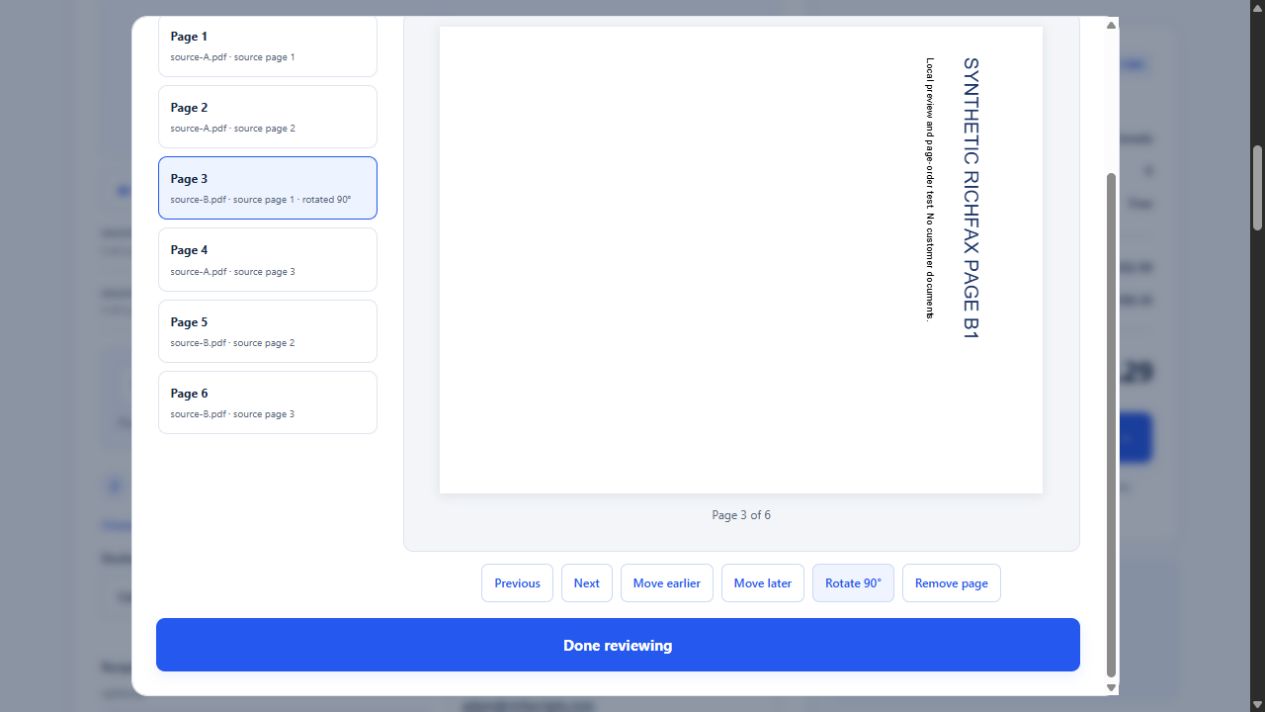
Select Review & arrange pages. Choose a page, then use Move earlier, Move later, Rotate 90° or Remove page. You can move pages across files. Undo reverses recent changes; Restore source pages restores the original selection. The page count and subtotal update as you work. These changes prepare a new PDF; your original files stay intact.
Check the number and cover
Choose Canada or United States and enter the correct area code and fax number. Confirm the number with the receiving office. Add a free cover only if useful; avoid adding a second cover if the source PDF already includes one.
Preview the exact prepared fax
Select Review your fax, then Preview every page, including the cover. Use Previous and Next to inspect every page, including the optional cover. Check saved form entries, signatures, orientation and margins. You can also Download prepared PDF and inspect it in your own viewer. Close the preview and return to preparation if anything needs changing.
Pay once, then check the result
Continue to secure checkout, sign in and verify your account email if needed. Review the final total before paying. Preparation and downloading never send a fax; sending starts after payment is confirmed. Open My workspace → My faxes to track the order and save its report.
Inspect small text before checkout: use Preview zoom to enlarge a page and scroll inside the page frame. Preview in grayscale is an approximate display aid for checking color-dependent text or highlights. Zoom and grayscale do not change the outgoing PDF; actual fax output may differ. Page arranging still changes the prepared PDF.
Check filled forms, signatures and annotations
RichFax checks PDF metadata for interactive fields, XFA form data and non-link annotations. An amber document note asks you to inspect these pages before paying. This check stays on your device and does not extract field values, flatten your document or validate a digital signature.
Open Preview every page, including the cover and check filled names, dates, checkboxes and visible signature marks. If entries are missing, use your original PDF app to print or export a regular flattened PDF, reopen that copy and check it, then remove the original file from RichFax and add the checked copy. Choose whether your PDF app prints comments or highlights. Avoid including both copies by accident.
Dynamic XFA form data is not converted by RichFax. Use a PDF app that supports the original form to create and verify a regular PDF. Printing makes a visual copy; it does not preserve or verify a cryptographic signature. Follow the recipient's requirements for accepting copies. Passing this metadata check does not guarantee that a document is complete or readable.
A readable PDF is not always a readable fax
Fax transmission can reduce fine detail. Check small print, pale signatures, colored highlights and cropped edges. If color is the only way to distinguish two entries, label them in text too. Inspect scanned pages visually: an image-based PDF may look correct even when it has no searchable text.
For filled forms, reopen the saved PDF and confirm that every entered value and signature is visible. RichFax does not validate form completeness, provide OCR or determine whether an office accepts your document.
Fix a PDF before paying
| Problem | Next step |
|---|---|
| Wrong order, sideways or unwanted pages | Use the built-in organizer. These changes need no separate PDF tool. |
| Password-protected PDF | Export an unlocked copy using software you are authorized to use, then reopen and check it. |
| Document exceeds the limits | Remove genuinely unnecessary pages or prepare a smaller PDF. Do not split into several paid faxes unless the recipient accepts that. |
| Need to fill fields, sign or edit content | Use a suitable document editor. RichScripts PDF tools have separate verification and pricing. |
| Preview unavailable | Download the prepared PDF to inspect it. Do not pay until you can verify the complete document. |
Need a separate first page? Create a free cover sheet, or transfer its details into the workspace’s standard free cover.
Edit elsewhere, then return safely
Edit this PDF, then return transfers your selected document pages locally to the PDF editor, without the optional RichFax cover. The separate tool may upload source files for size and fingerprint verification and may charge for processing; inspect its quote first. After processing, choose Send this PDF with RichFax.
Recipient details are not restored automatically. If the same-tab return offers Restore previous fax details, choose it only when those details belong to the returned PDF, then review the number again. Account-linked details require the original account and expire after 15 minutes. Read the document-handling explanation.
Common PDF-to-fax questions
Can I email a PDF to RichFax to send it?
RichFax does not currently offer public email-to-fax sending. Download the attachment and choose it in the website or supported app.
Can I send from my phone?
Use your browser’s file picker to select a saved PDF, or scan paper with Scan a document. The Android app is available on Google Play in Canada and the US. This guide describes the current website controls; mobile app controls can differ.
Is a successful fax proof that my request was approved?
No. Delivery confirms acceptance by the receiving fax service, not human reading or approval. Follow up with the recipient if you need confirmation that they processed it.